FAQ
Five quick answers for your first game on AllSports Radio.
What is AllSports Radio?
AllSports Radio is a live sports platform built around the game itself. Follow games with rich live data and detailed scorecards, listen to live user-created audio broadcasts directly on game pages, or open a booth and call a game yourself. Today it covers MLB, NPB, and KBO.
How do I listen?
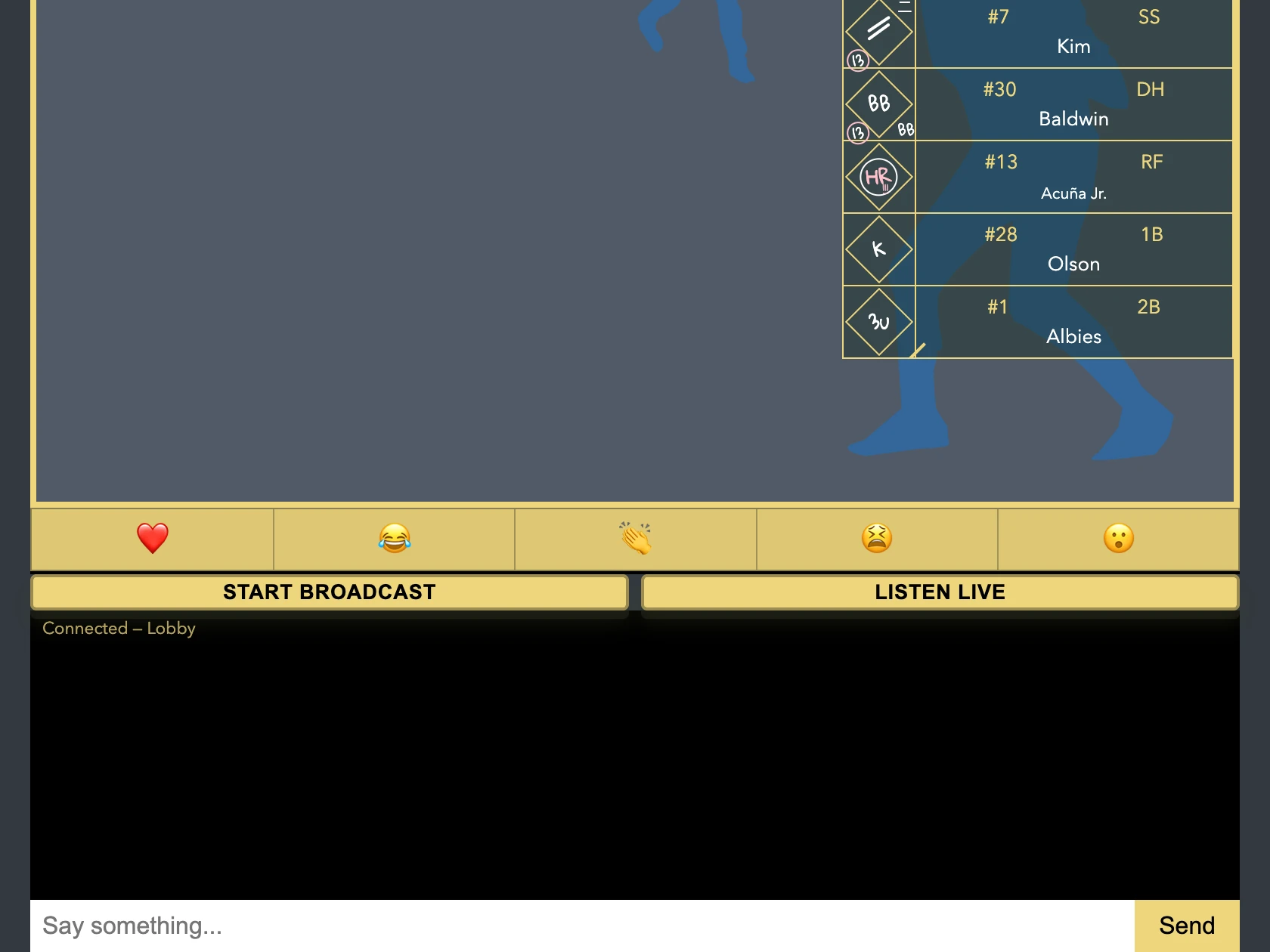
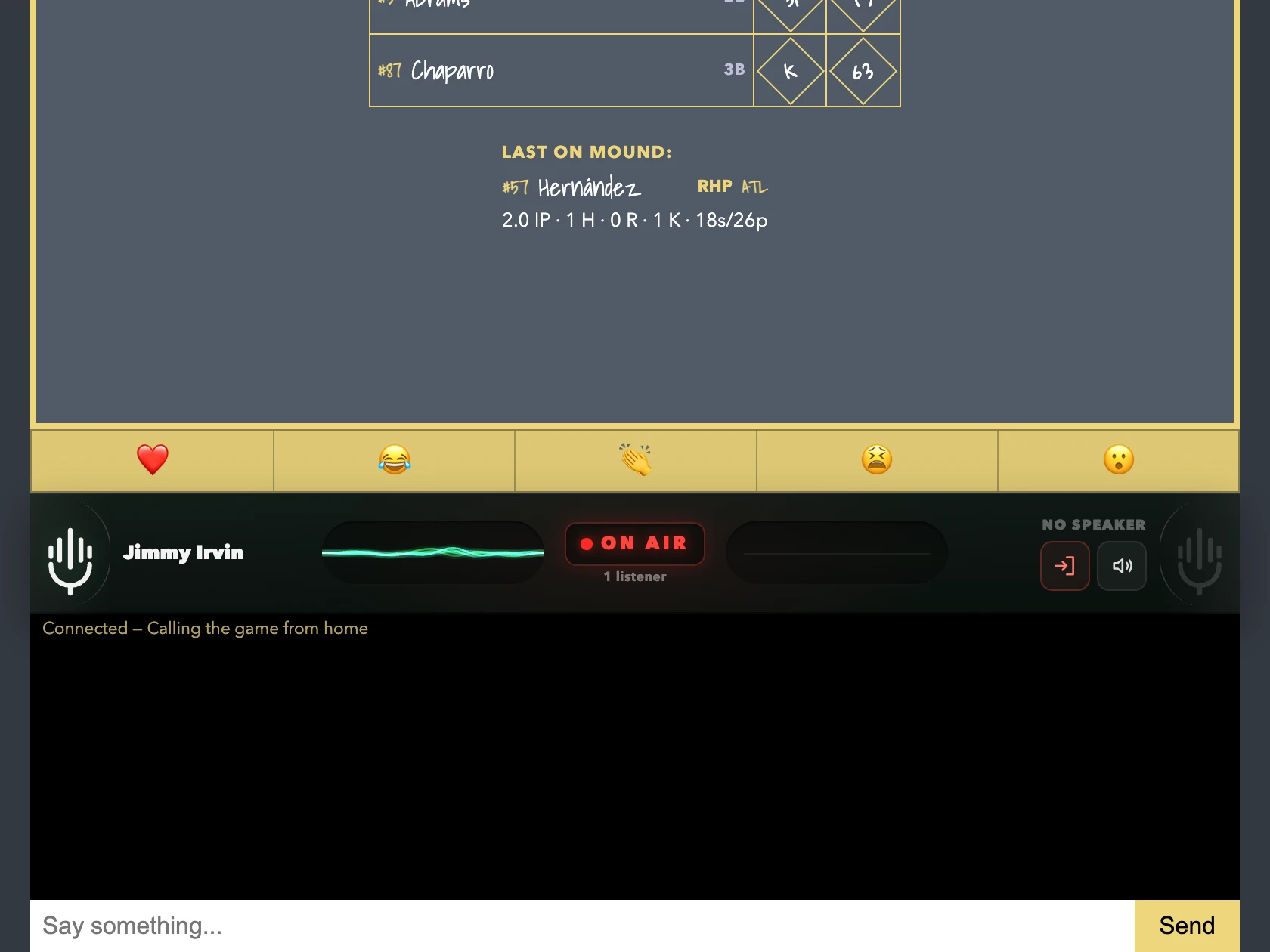
Open any game that is on today. Under the game you will find two buttons, Start Broadcast and Listen live. When someone is on air, Listen live lights up: click it and you are in their booth. If more than one broadcast is running, a Channels list lets you pick. Audio starts on its own; if your browser blocks it, click Enable audio. Mute or leave the room whenever you like. No account needed.
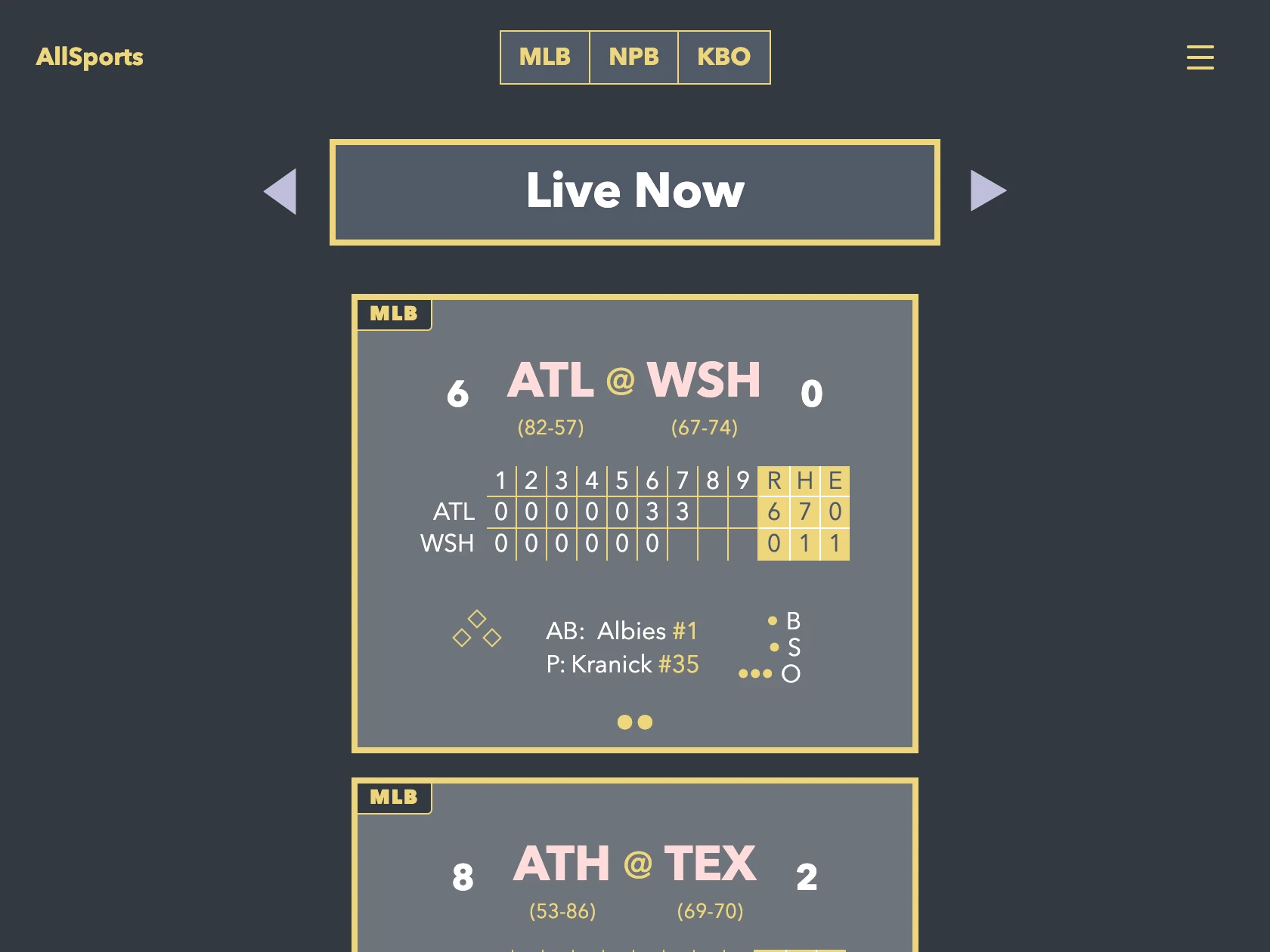
- Open a game that is on today from Live Now or a league slate.
- Under the game, click Listen live. It lights up whenever someone is on air.
- The console shows ON AIR and you are listening. Mute or leave whenever you like.
How do I broadcast?
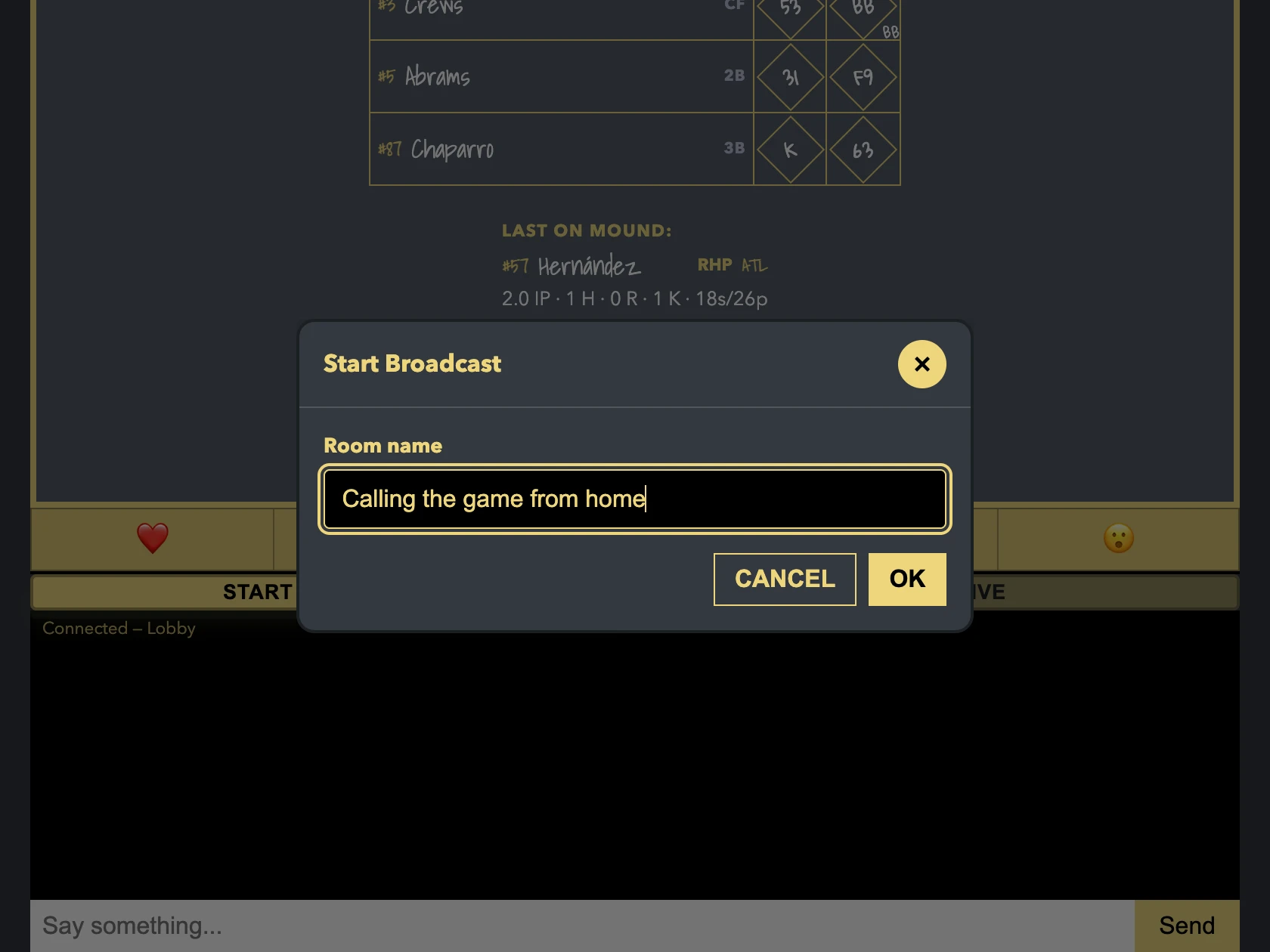
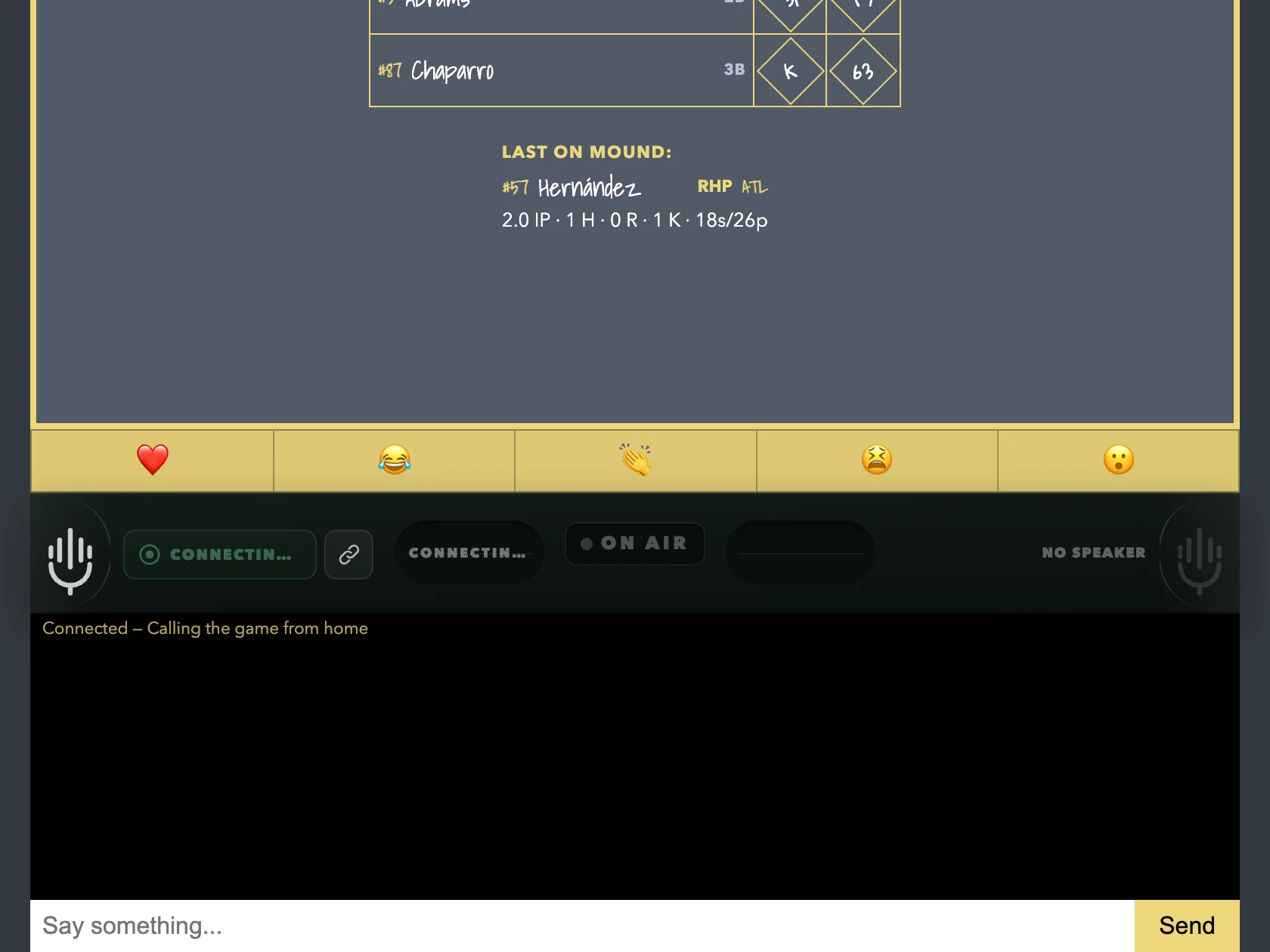
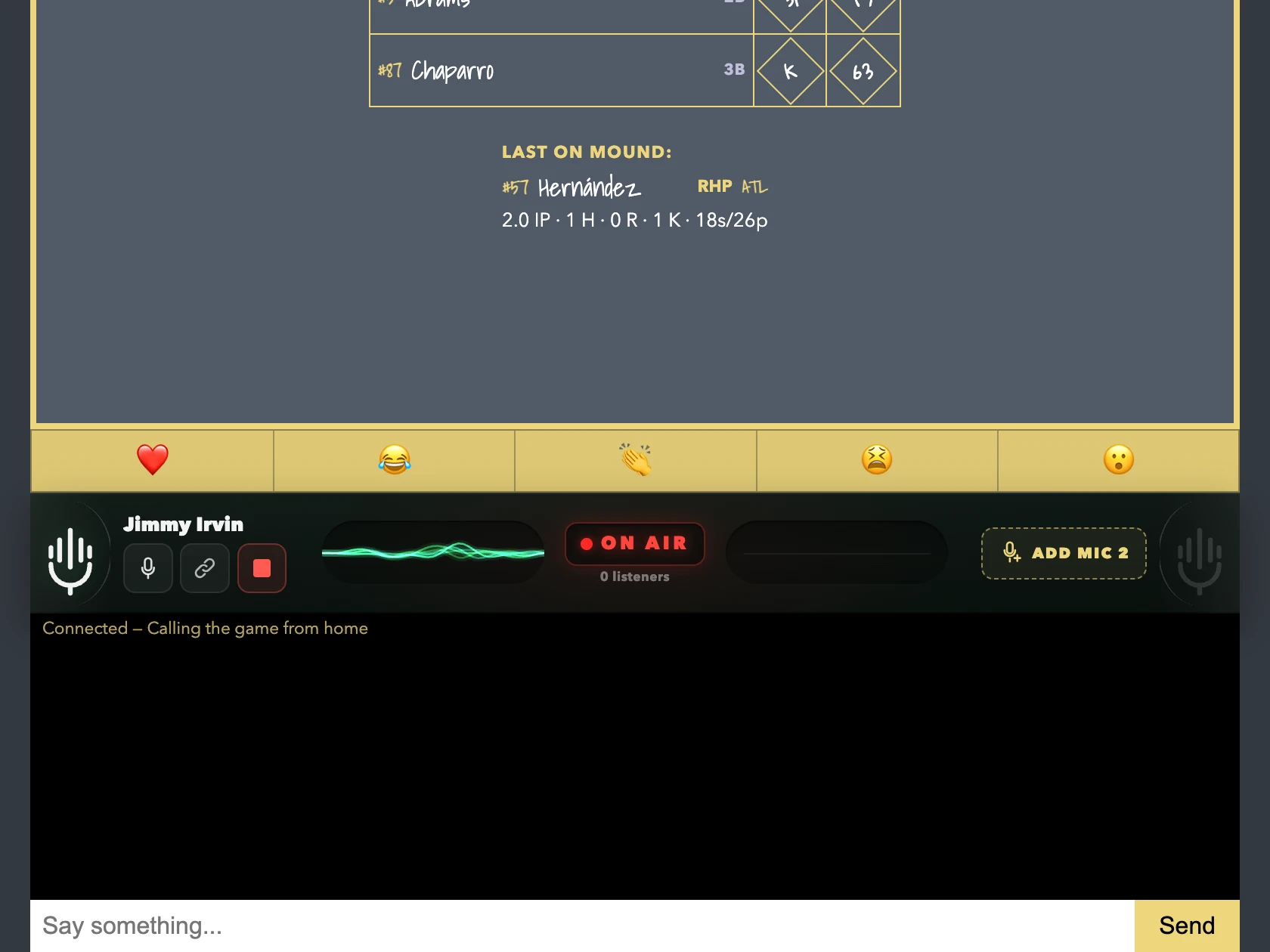
Open a game that is on today and click Start Broadcast under the game. Give your room a name and click OK. Your browser asks to use your microphone; allow it, and the console lights up ON AIR. You are now live to anyone who clicks Listen live on that game. The mic button mutes you, and the red button ends the broadcast. You can also start from the menu: Broadcast then Broadcast Now lists every game that is live right now.
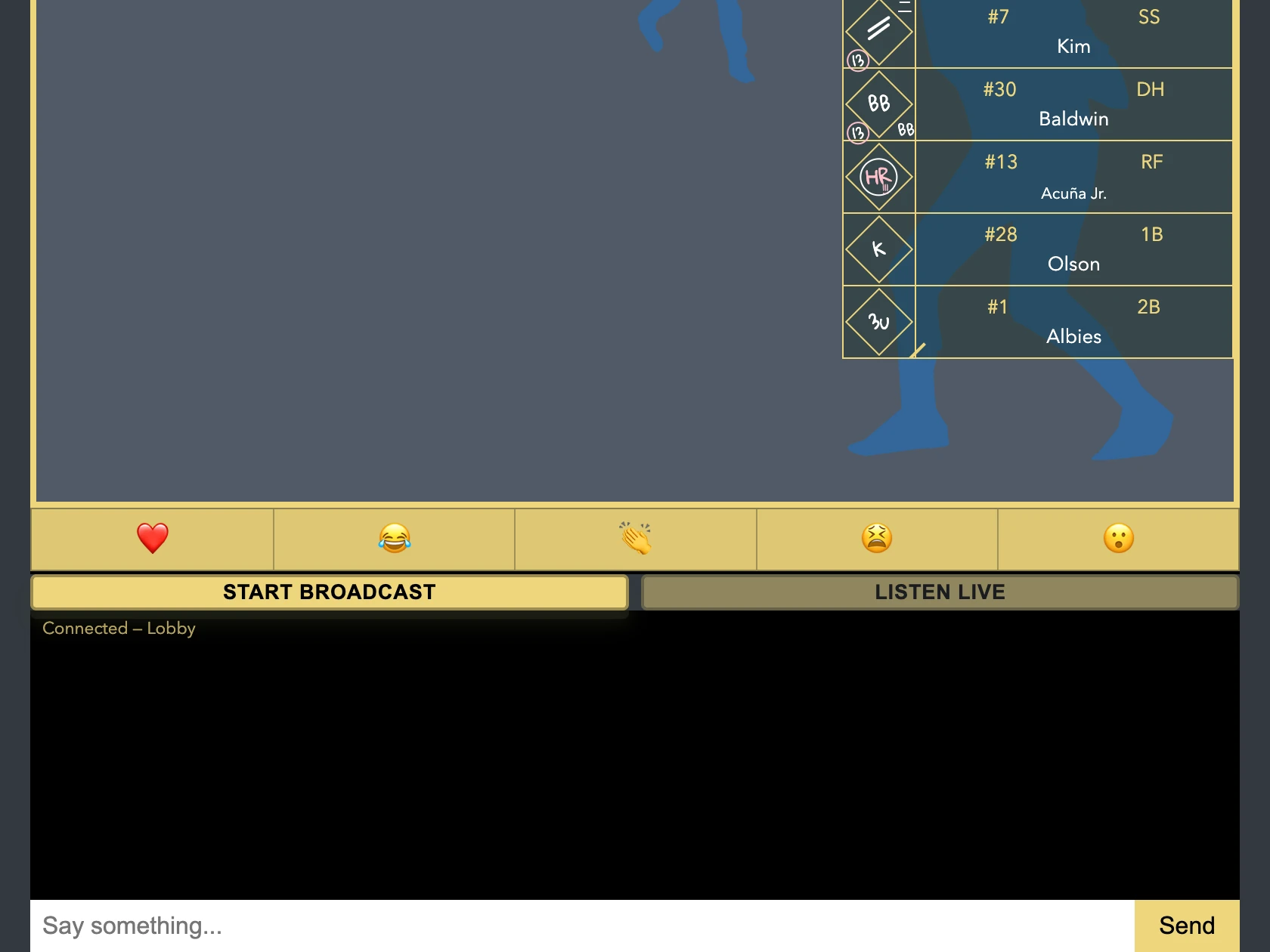
- Open a game that is on today from Live Now or a league slate.
- Under the game, click Start Broadcast.
- Give your room a name and click OK.
- Your browser asks to use your microphone. Allow it.
- ON AIR lights up. You are live to anyone who clicks Listen live on this game.
How do I add a second mic?
Invite one of your listeners to join you on Mic 2. While you are on air, click Add Mic 2, pick a name under Current listeners, and click Send request. Your Mic 2 seat then shows Pending while you wait: they receive a Join on Mic 2 invitation and have to click Accept before they are connected, so a short wait is normal. Once they accept, their name and waveform appear on Mic 2. From that seat you can mute or remove them, and they can leave the booth themselves.
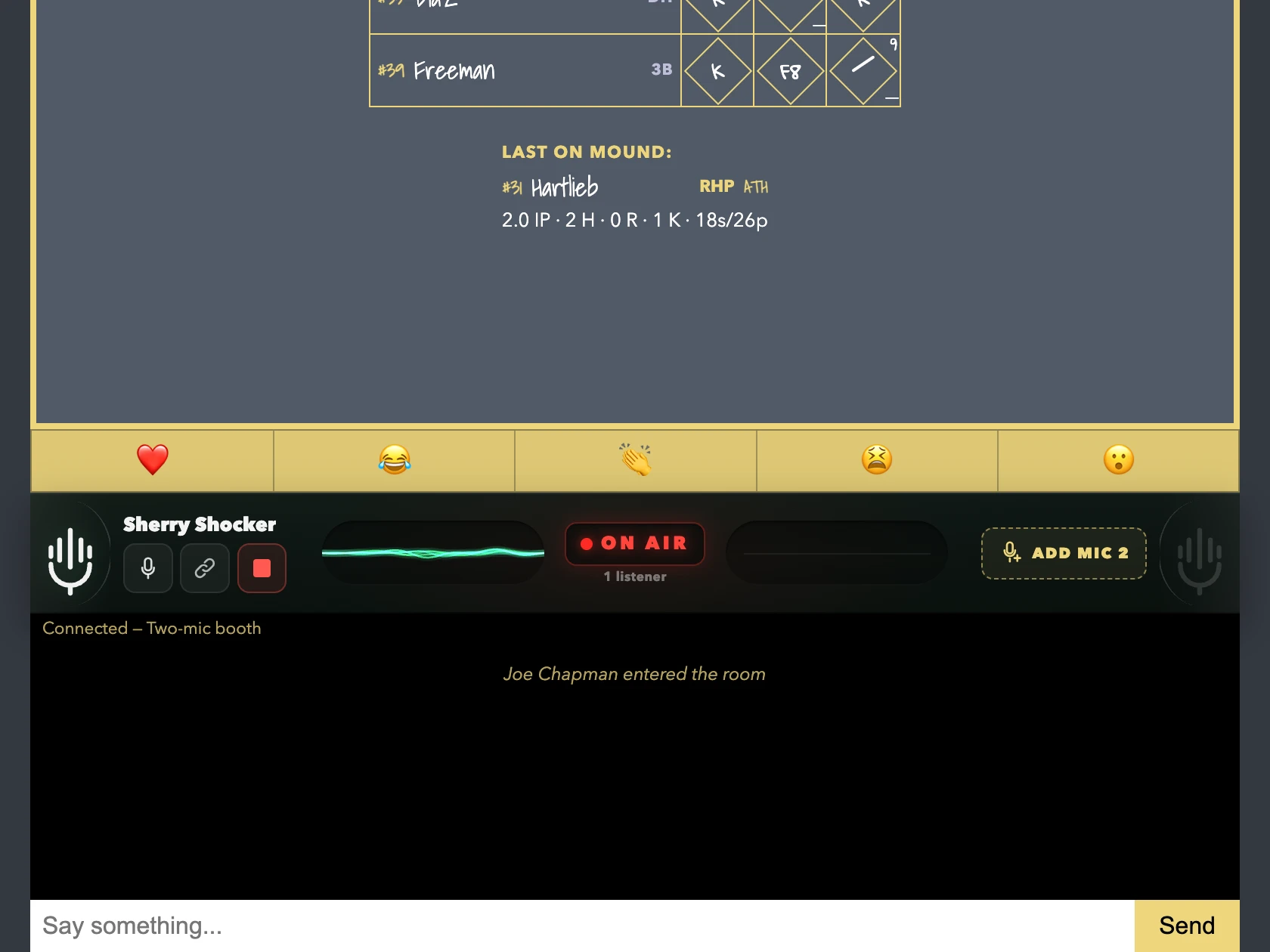
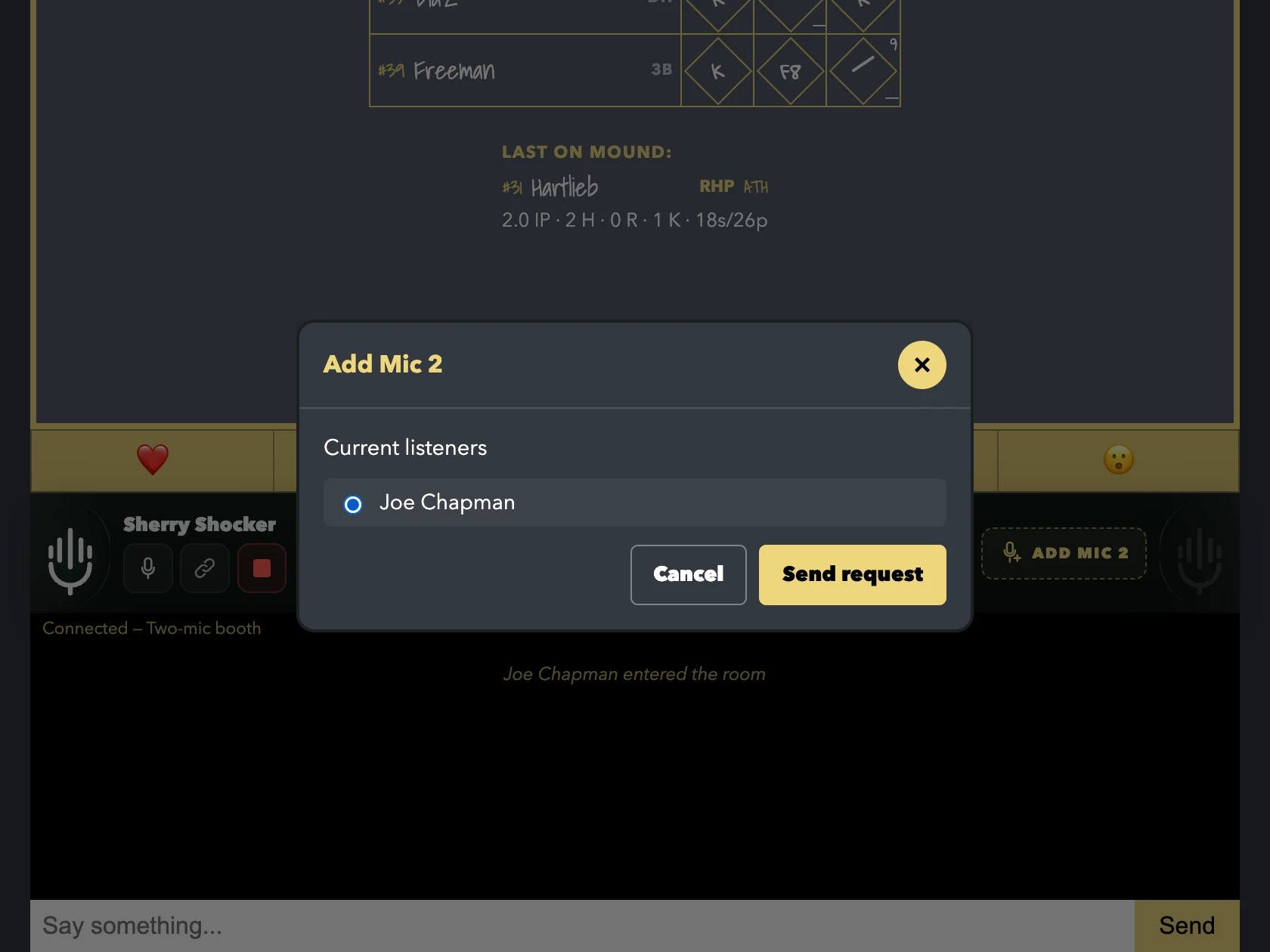
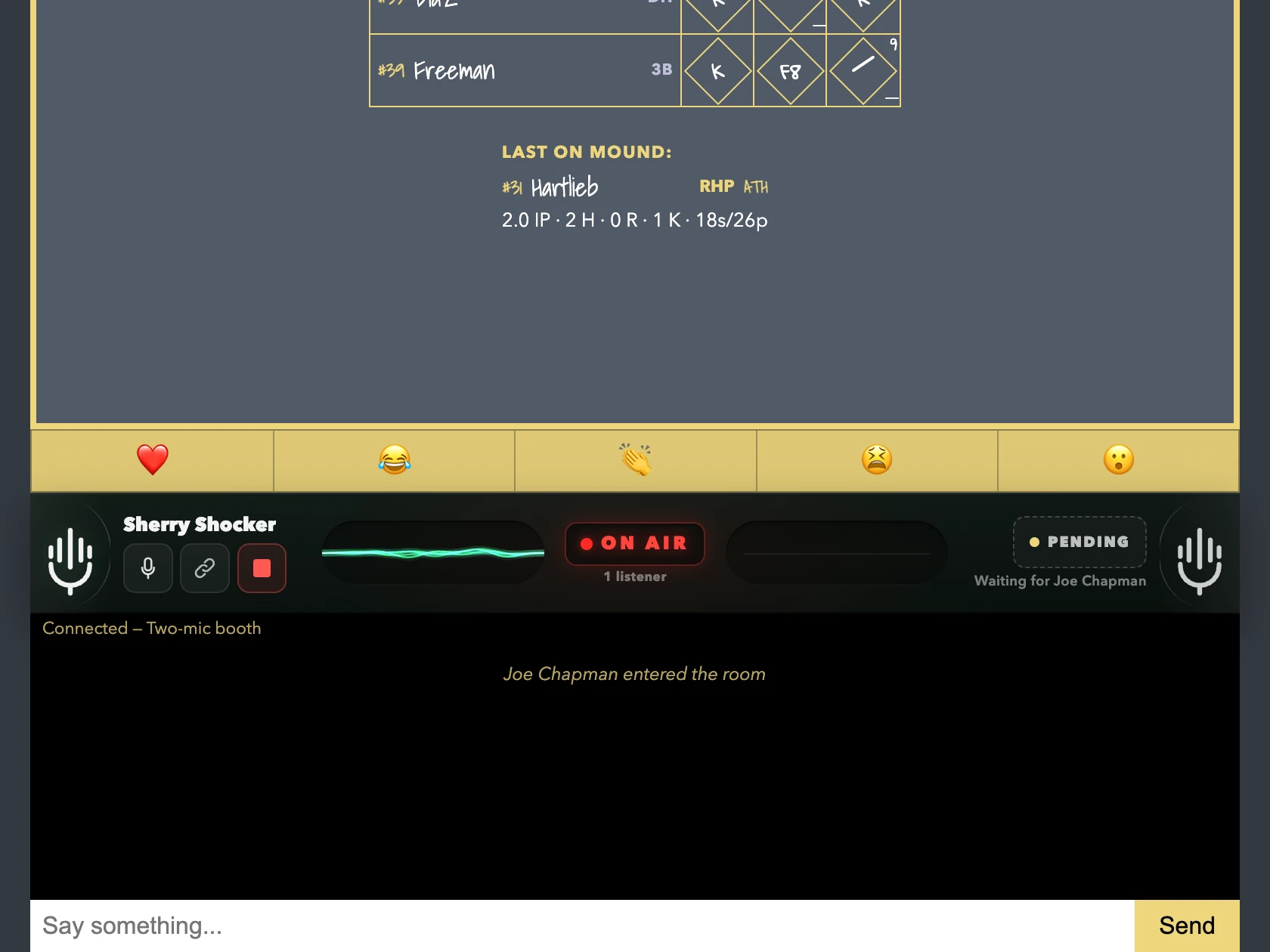
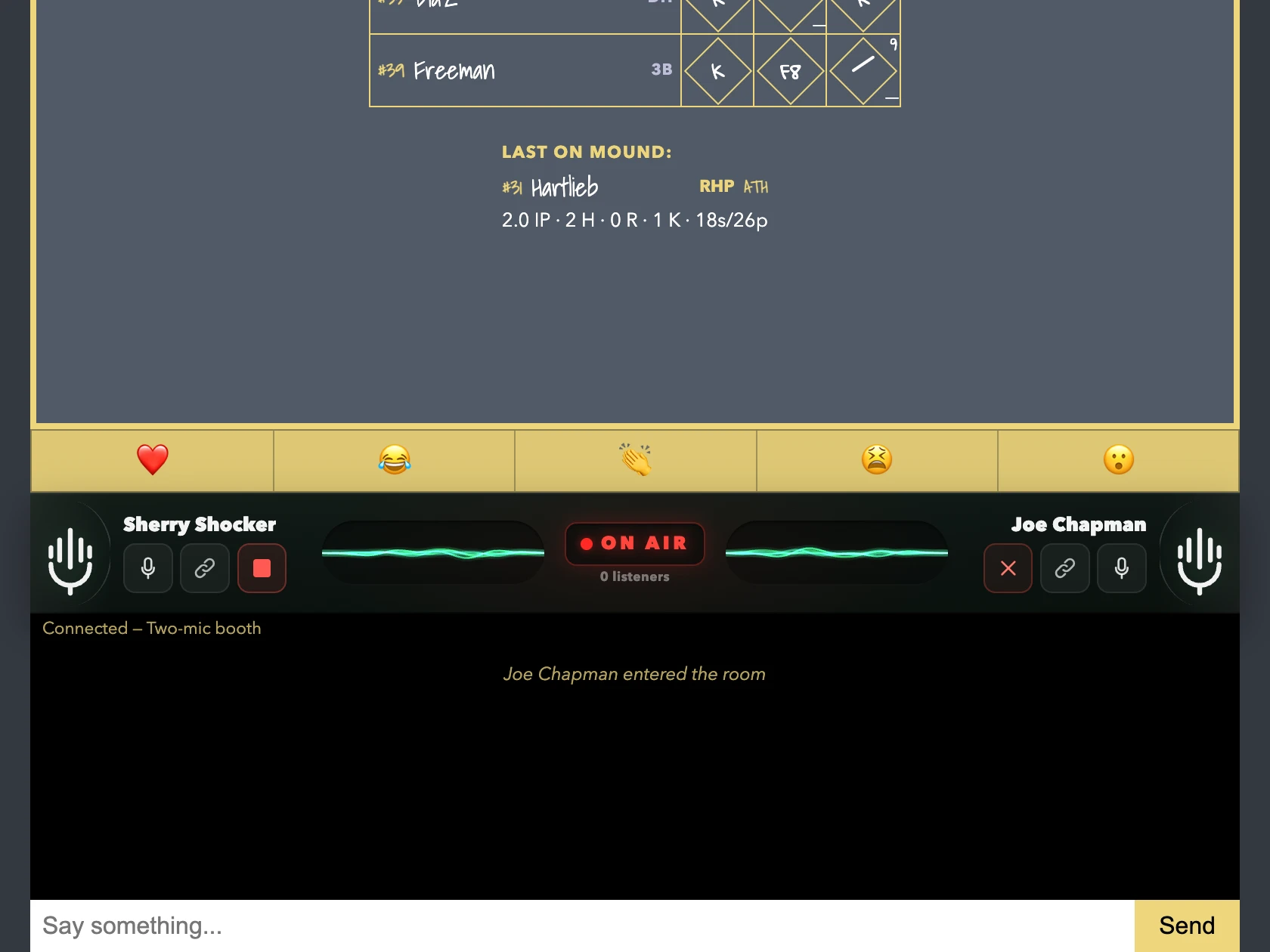
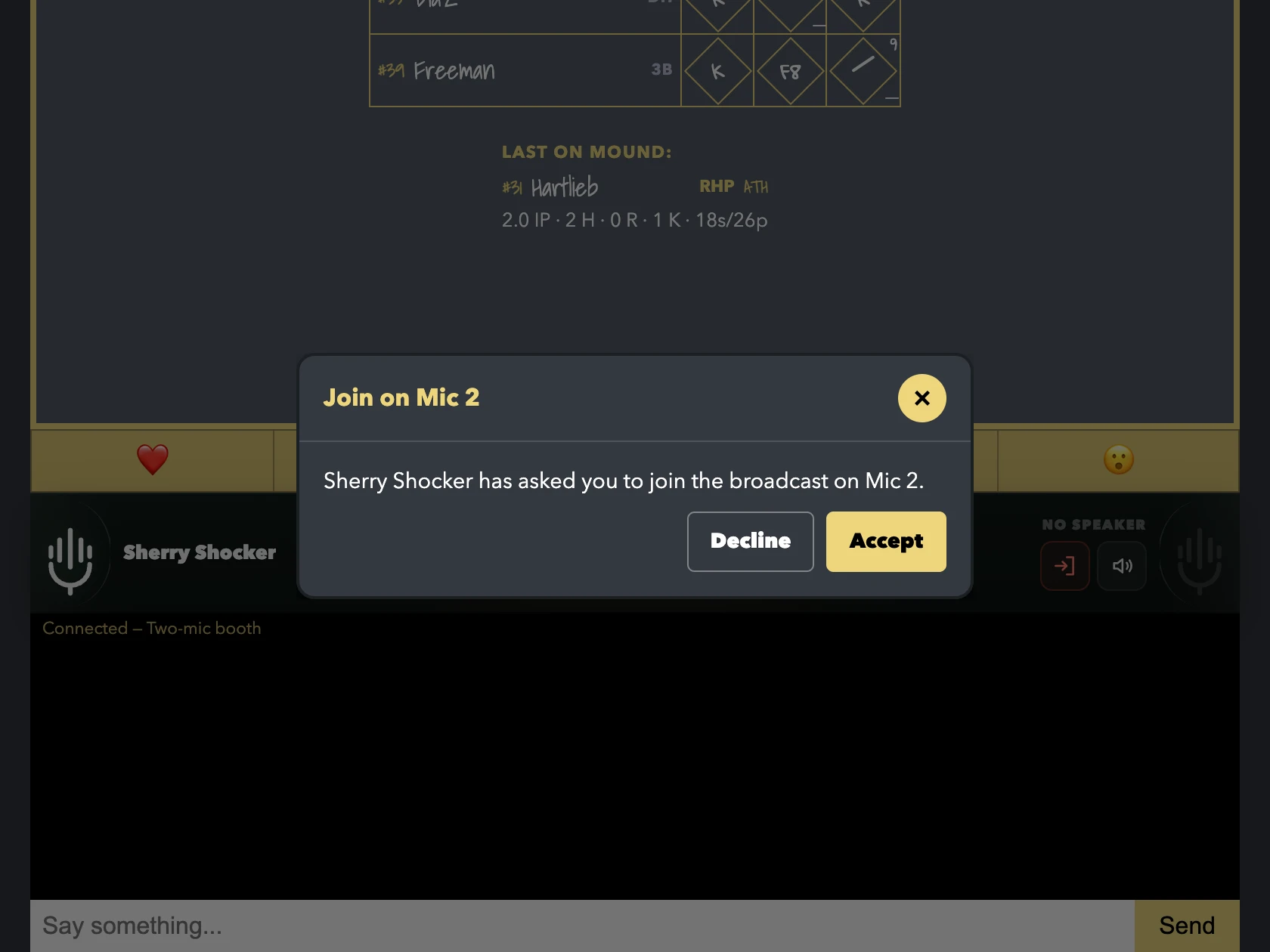
- While you are on air, click Add Mic 2 on the Mic 2 seat.
- Pick a listener under Current listeners and click Send request.
- Your Mic 2 seat shows Pending. Nothing connects until they accept.
- They see a Join on Mic 2 invitation and click Accept.
- Mic 2 is connected. Their name and waveform appear, with mute and remove on that seat.
How do I schedule a broadcast?
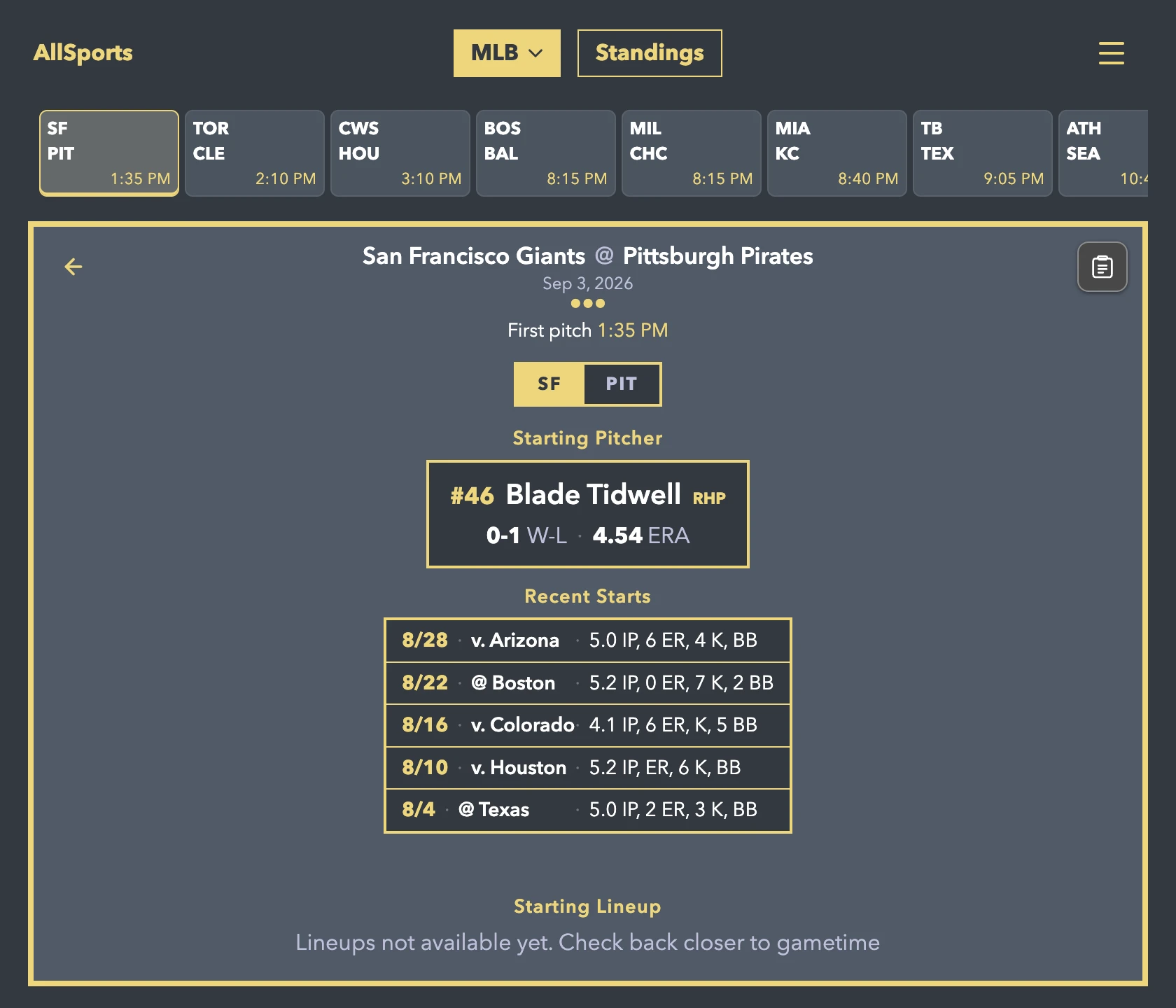
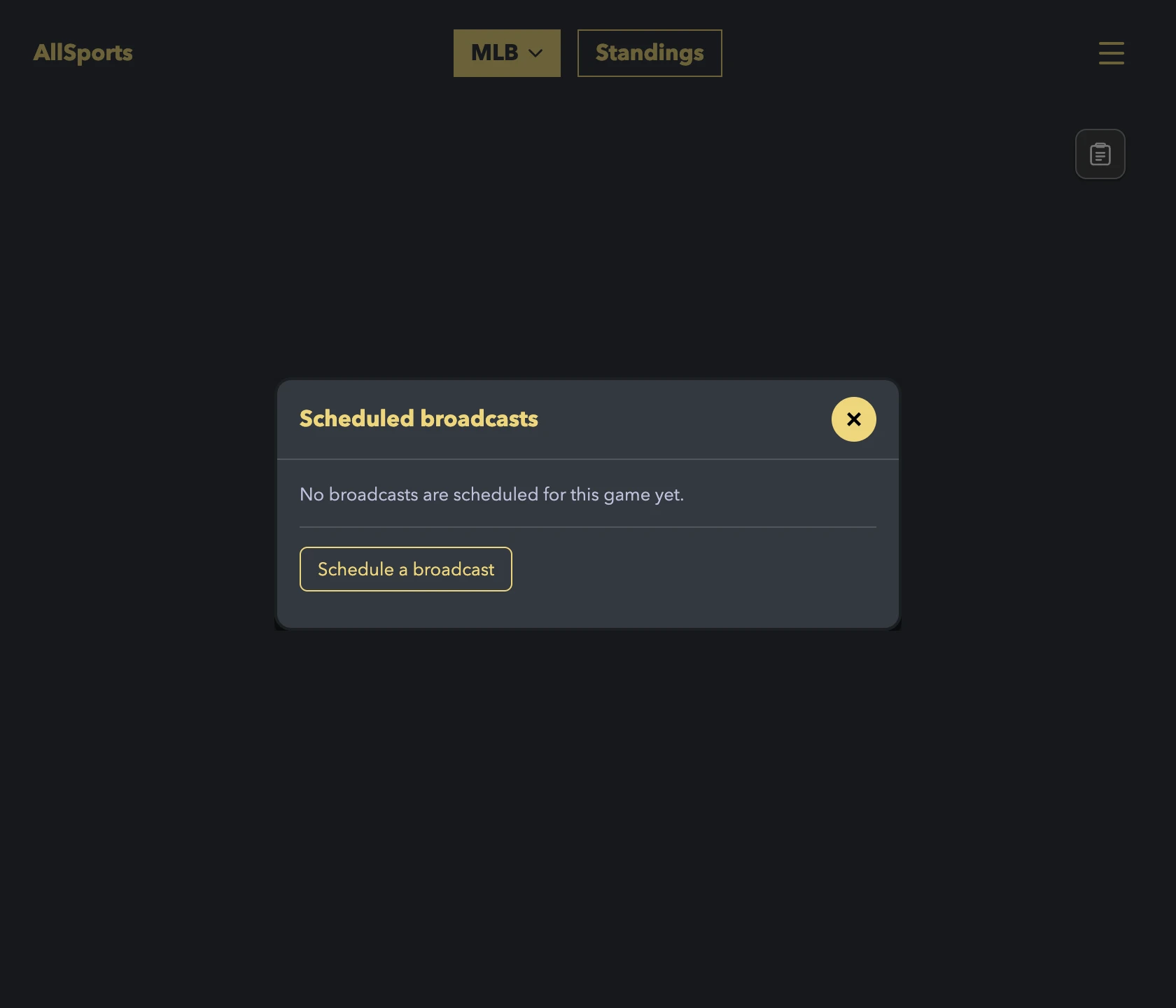
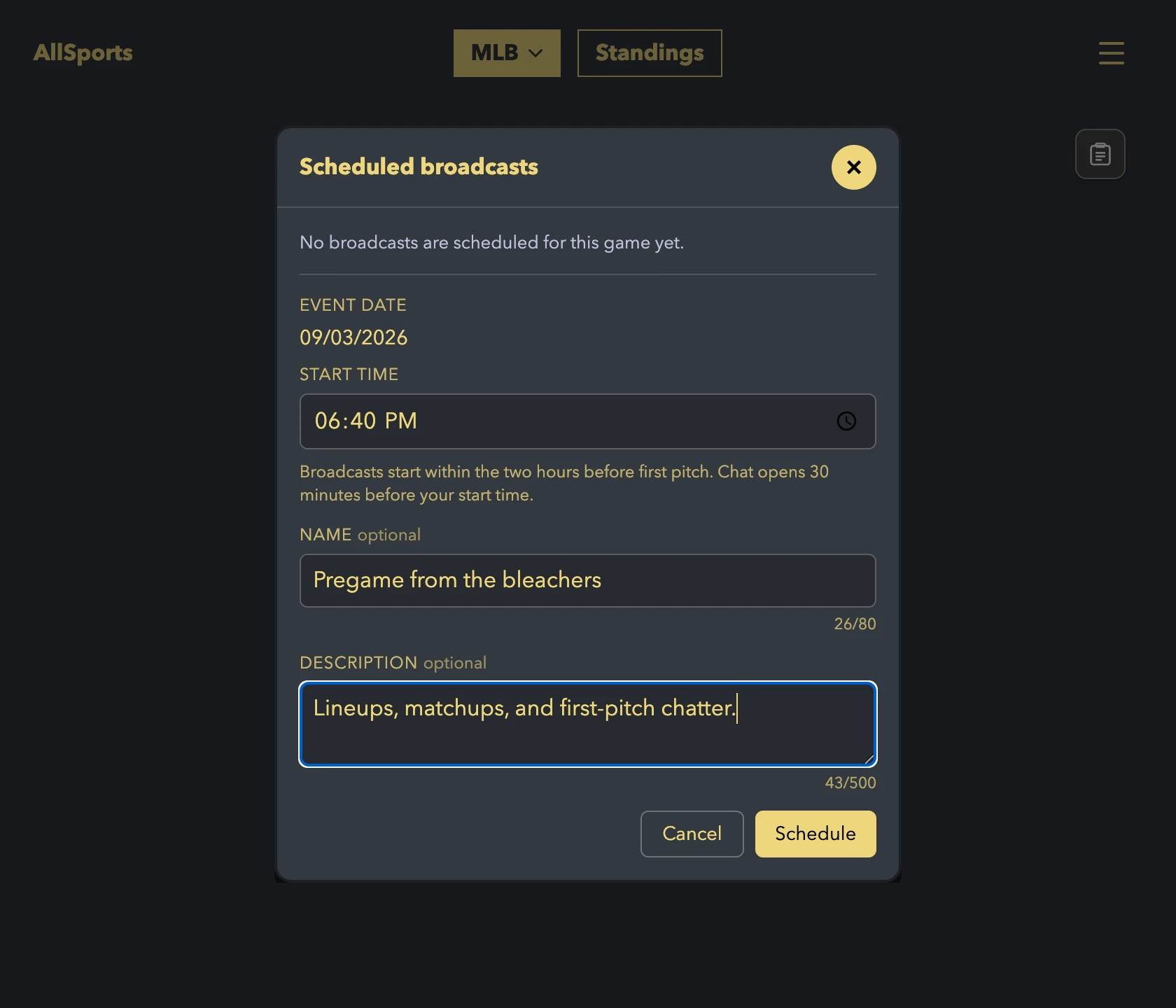
Scheduling is for games that have not started yet, and you need to be signed in. Open the game and click the clipboard button (Scheduled broadcasts) in the corner of the preview. Click Schedule a broadcast, pick a start time anywhere in the two hours before first pitch, add an optional name and description, and click Schedule. You get a share link straight away. Chat opens 30 minutes before your start time, and when it is time you start the live audio from the game page. Manage your broadcasts lets you edit or delete it later. The menu offers the same thing under Broadcast then Schedule Broadcast.
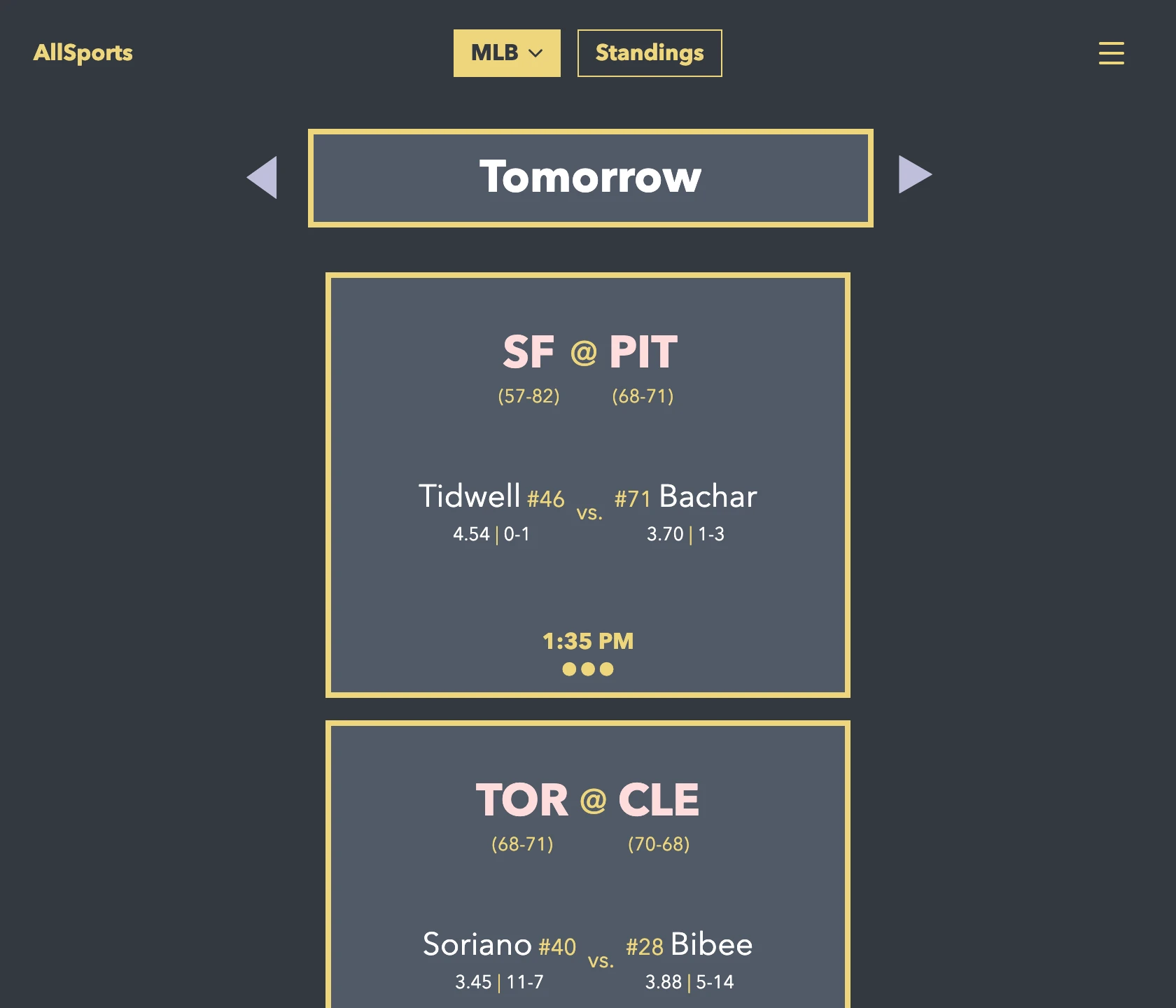
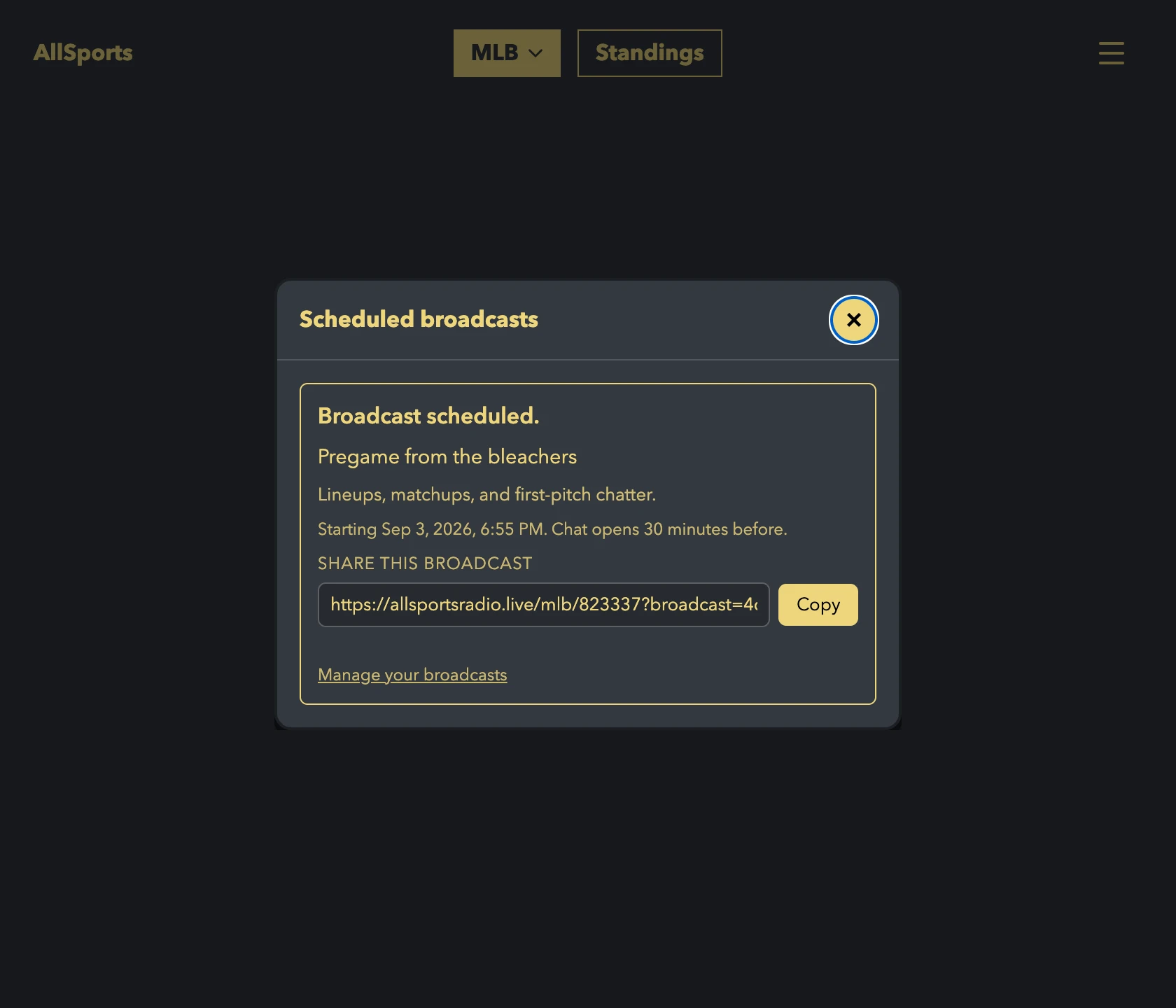
- Open a game that has not started yet.
- Click the clipboard button (Scheduled broadcasts) in the corner of the preview.
- Click Schedule a broadcast. You need to be signed in for this button to appear.
- Pick a start time, add an optional name and description, and click Schedule.
- Done. Share the link now, and manage or edit the broadcast later.